Hiển thị các bài đăng có nhãn SQL Tip. Hiển thị tất cả bài đăng

Thứ Bảy, 27 tháng 6, 2015

SQL Tips: Create SQL Job to backup database everyday


Today, I will make a backup manual database daily work by creating SQL Job.
First we have to install the SQL Server Agent SQL.
Set mode to run automatically when Windows startup.

Step 1.

- Setup SQL Server Agent
- Run Sql Server Agent services


Step 2.
- Create database: "Demo"
- Create store procedure jb_Backup_Database


-- =============================================
-- Author: Phuong Nguyen
-- Create date: YYYY-MM-DD
-- Description: Backup database
-- =============================================
ALTER PROCEDURE [dbo].[jb_Backup_Database]

AS
BEGIN

DECLARE @DBName NVARCHAR(50) -- database name
DECLARE @BKPath NVARCHAR(256) -- path for backup files
DECLARE @BKFileName NVARCHAR(256) -- filename for backup
DECLARE @BKFileDate NVARCHAR(20) -- used for file name

-- Set dbname is current db
SET @DBName = DB_NAME()

-- Database backup directory
SET @BKPath = 'C:\DB\Backup\'

-- Filename format
SELECT @BKFileDate = CONVERT(NVARCHAR(20),getDate(),112)
SET @BKFileName = @BKPath + @DBName + '_' + @BKFileDate + '.BAK'

BACKUP DATABASE @DBName TO DISK = @BKFileName

END

- Run proc to test result
exec jb_Backup_Database

Create backup file successful


Step 3. Create Job call store procedure

- Create Job with job name "jb_Backup_database_demo"


- Create Step for database "Demo" with command: exec jb_Backup_Database

- Schedule Job
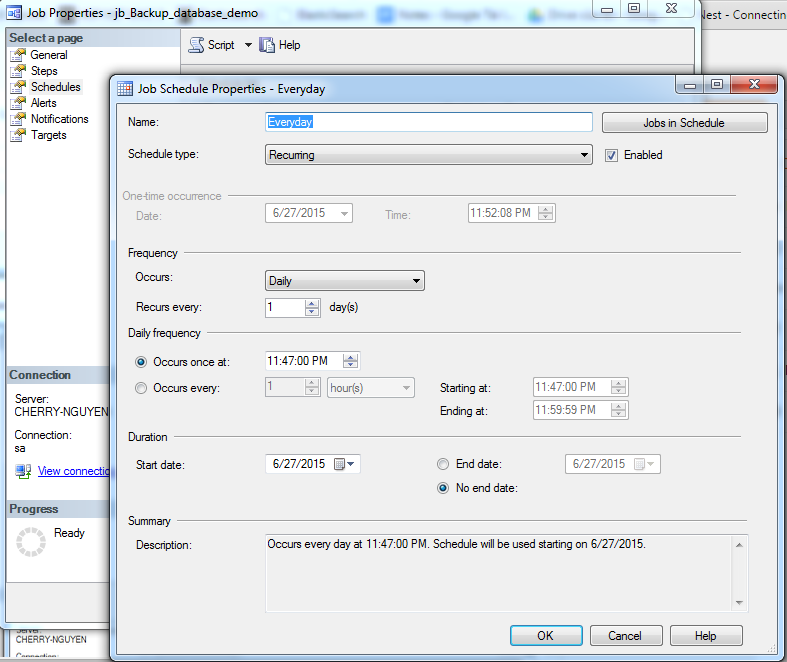
After create job, enable job.

You can run job to test result.

SQL Script:
USE [msdb]
GO

/****** Object: Job [jb_Backup_database_demo] Script Date: 6/28/2015 4:18:14 PM ******/
BEGIN TRANSACTION
DECLARE @ReturnCode INT
SELECT @ReturnCode = 0
/****** Object: JobCategory [[Uncategorized (Local)]]] Script Date: 6/28/2015 4:18:14 PM ******/
IF NOT EXISTS (SELECT name FROM msdb.dbo.syscategories WHERE name=N'[Uncategorized (Local)]' AND category_class=1)
BEGIN
EXEC @ReturnCode = msdb.dbo.sp_add_category @class=N'JOB', @type=N'LOCAL', @name=N'[Uncategorized (Local)]'
IF (@@ERROR <> 0 OR @ReturnCode <> 0) GOTO QuitWithRollback

END

DECLARE @jobId BINARY(16)
EXEC @ReturnCode = msdb.dbo.sp_add_job @job_name=N'jb_Backup_database_demo',
@enabled=1,
@notify_level_eventlog=0,
@notify_level_email=0,
@notify_level_netsend=0,
@notify_level_page=0,
@delete_level=0,
@description=N'No description available.',
@category_name=N'[Uncategorized (Local)]',
@owner_login_name=N'sa', @job_id = @jobId OUTPUT
IF (@@ERROR <> 0 OR @ReturnCode <> 0) GOTO QuitWithRollback
/****** Object: Step [RunBackupDemo] Script Date: 6/28/2015 4:18:15 PM ******/
EXEC @ReturnCode = msdb.dbo.sp_add_jobstep @job_id=@jobId, @step_name=N'RunBackupDemo',
@step_id=1,
@cmdexec_success_code=0,
@on_success_action=1,
@on_success_step_id=0,
@on_fail_action=2,
@on_fail_step_id=0,
@retry_attempts=0,
@retry_interval=0,
@os_run_priority=0, @subsystem=N'TSQL',
@command=N'exec jb_Backup_Database',
@database_name=N'Demo',
@flags=0
IF (@@ERROR <> 0 OR @ReturnCode <> 0) GOTO QuitWithRollback
EXEC @ReturnCode = msdb.dbo.sp_update_job @job_id = @jobId, @start_step_id = 1
IF (@@ERROR <> 0 OR @ReturnCode <> 0) GOTO QuitWithRollback
EXEC @ReturnCode = msdb.dbo.sp_add_jobschedule @job_id=@jobId, @name=N'Everyday',
@enabled=1,
@freq_type=4,
@freq_interval=1,
@freq_subday_type=1,
@freq_subday_interval=0,
@freq_relative_interval=0,
@freq_recurrence_factor=0,
@active_start_date=20150627,
@active_end_date=99991231,
@active_start_time=234700,
@active_end_time=235959,
@schedule_uid=N'624f7aee-128d-403b-8037-4bde1c1a792d'
IF (@@ERROR <> 0 OR @ReturnCode <> 0) GOTO QuitWithRollback
EXEC @ReturnCode = msdb.dbo.sp_add_jobserver @job_id = @jobId, @server_name = N'(local)'
IF (@@ERROR <> 0 OR @ReturnCode <> 0) GOTO QuitWithRollback
COMMIT TRANSACTION
GOTO EndSave
QuitWithRollback:
IF (@@TRANCOUNT > 0) ROLLBACK TRANSACTION
EndSave:

GO

You are created Job to backup database everyday.

Good luck

Thứ Ba, 26 tháng 5, 2015

SQL Tips: Keyboard Shortcuts Every SQL Server Geek Should Know


A smart programmer knows the ins and outs of the IDE in which he works. Keyboard shortcuts save a lot of time and can improve productivity as well. SQL server Management Studio has included over 100 keyboard shortcuts. Here, we will explore the most essential shortcuts which will make our daily programming life more easy and intuitive.
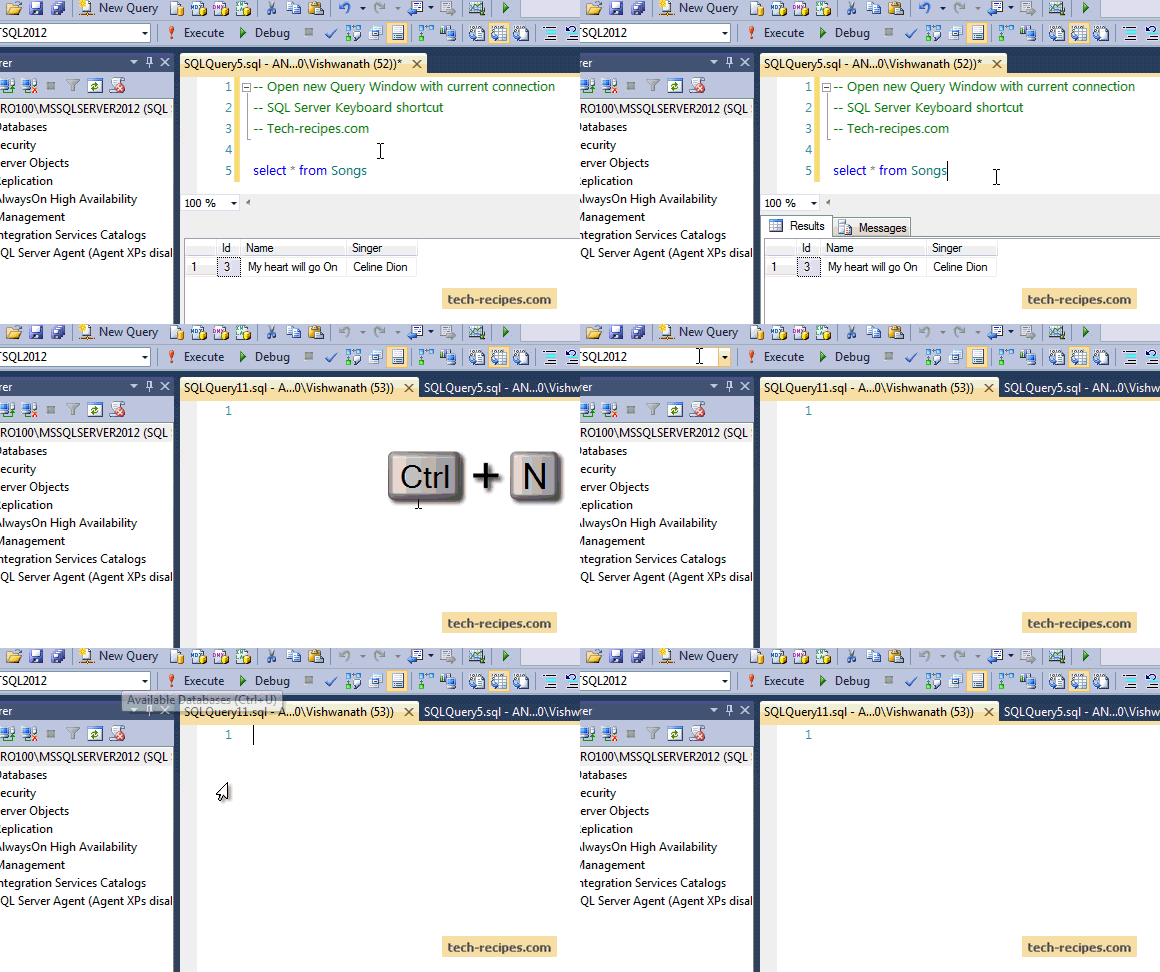
1. Open a new Query Window with current connection (Ctrl + N)
This shortcut opens up a new query window with an existing connection. It will query to the same database the current query window does.
SQL_Server_New_Window_Keyboard_Shortcut
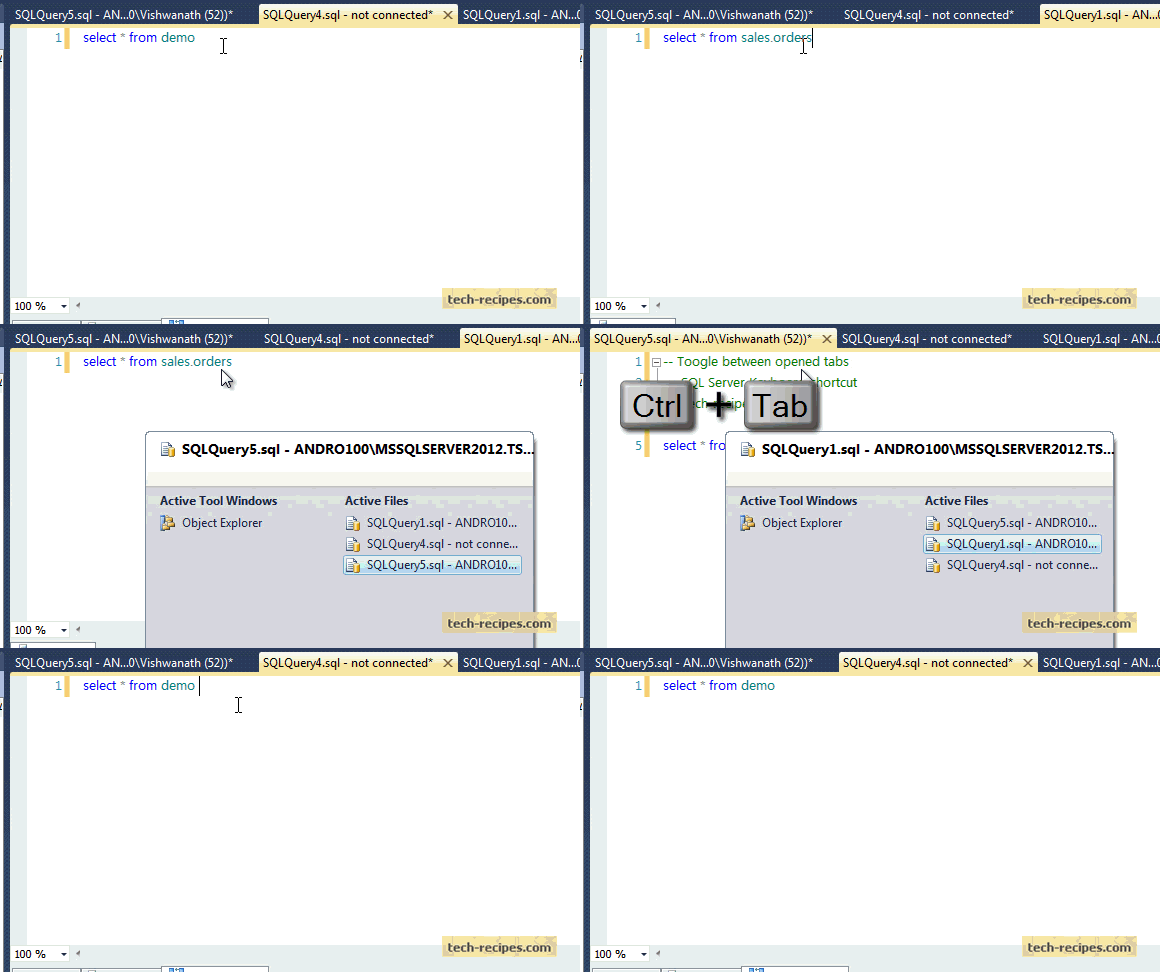
2. Toggle between opened tabs (Ctrl + Tab)
This combination will help you switch between multiple opened tabs.
sql_server_toogle_tabs_keyboard_shortcut
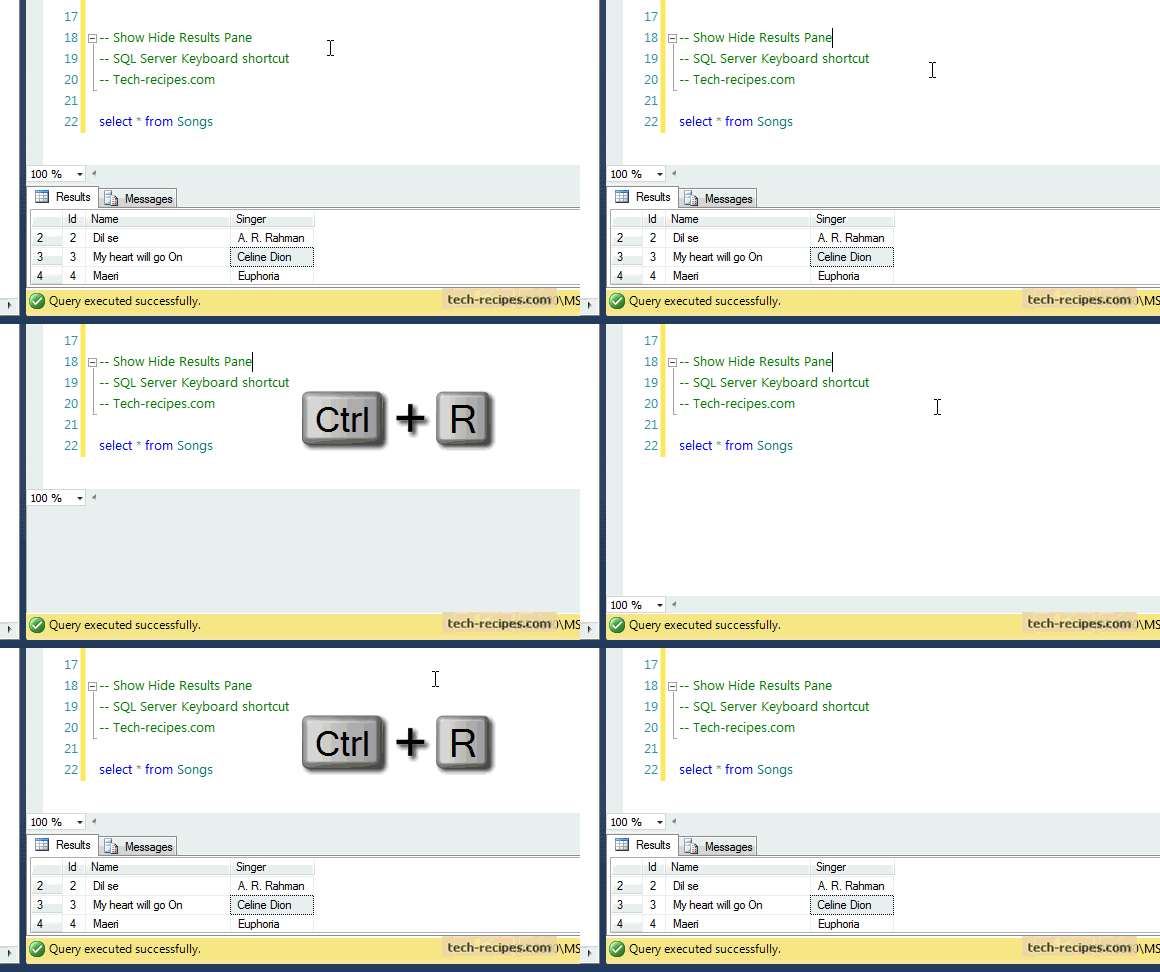
3. Show/Hide Results pane (Ctrl + R)
If you have more lines of code in SQL Server after executing the query, the Results pane covers most of the window, so you need to scroll down continuously. Using this combination, you can save a lot of time.
SQL_server_keyboard_shortcuts_show_hide_results_pane
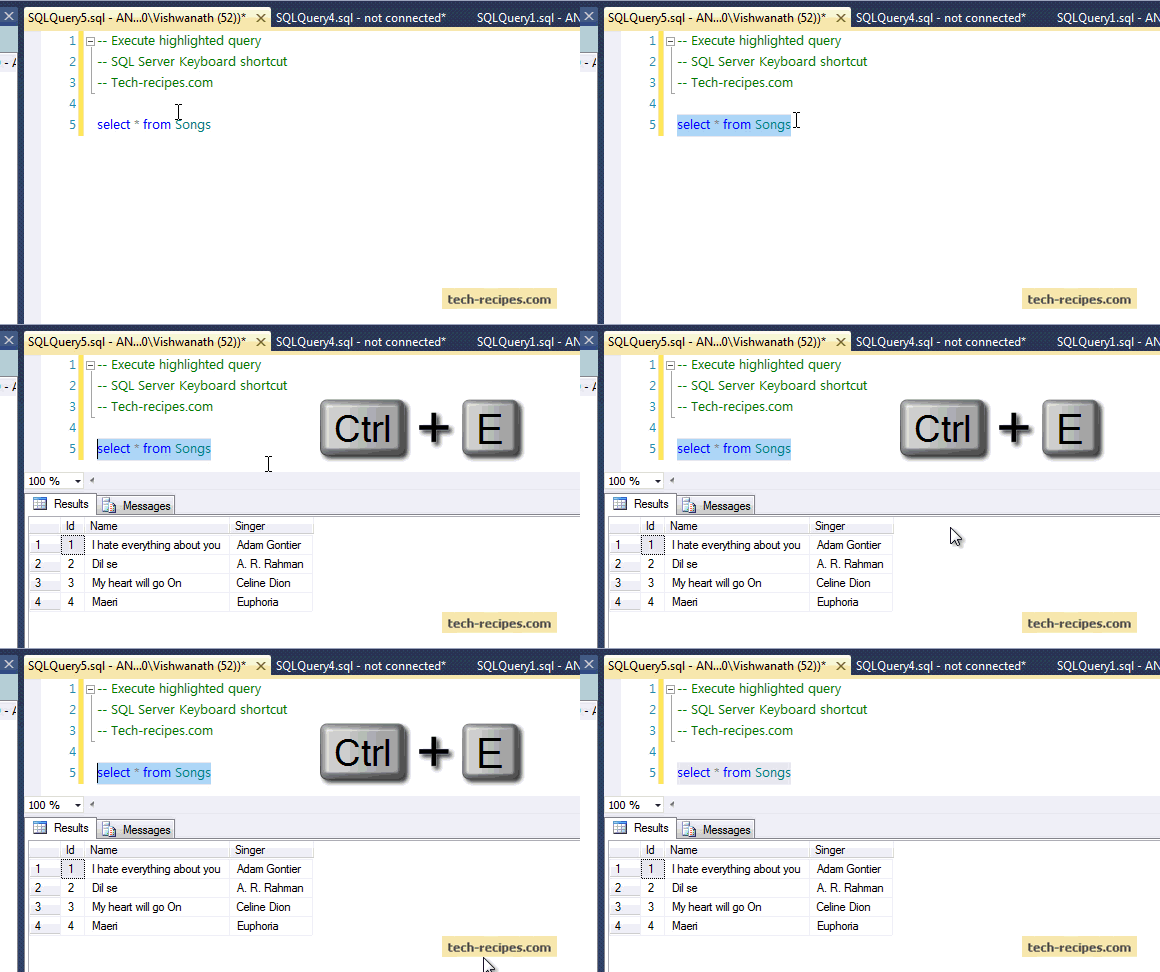
4. Execute highlighted query (Ctrl + E)
Hold this key combination, and execute the highlighted query to see the results.
SQL_server_shortcuts_Execute_highlighted_query
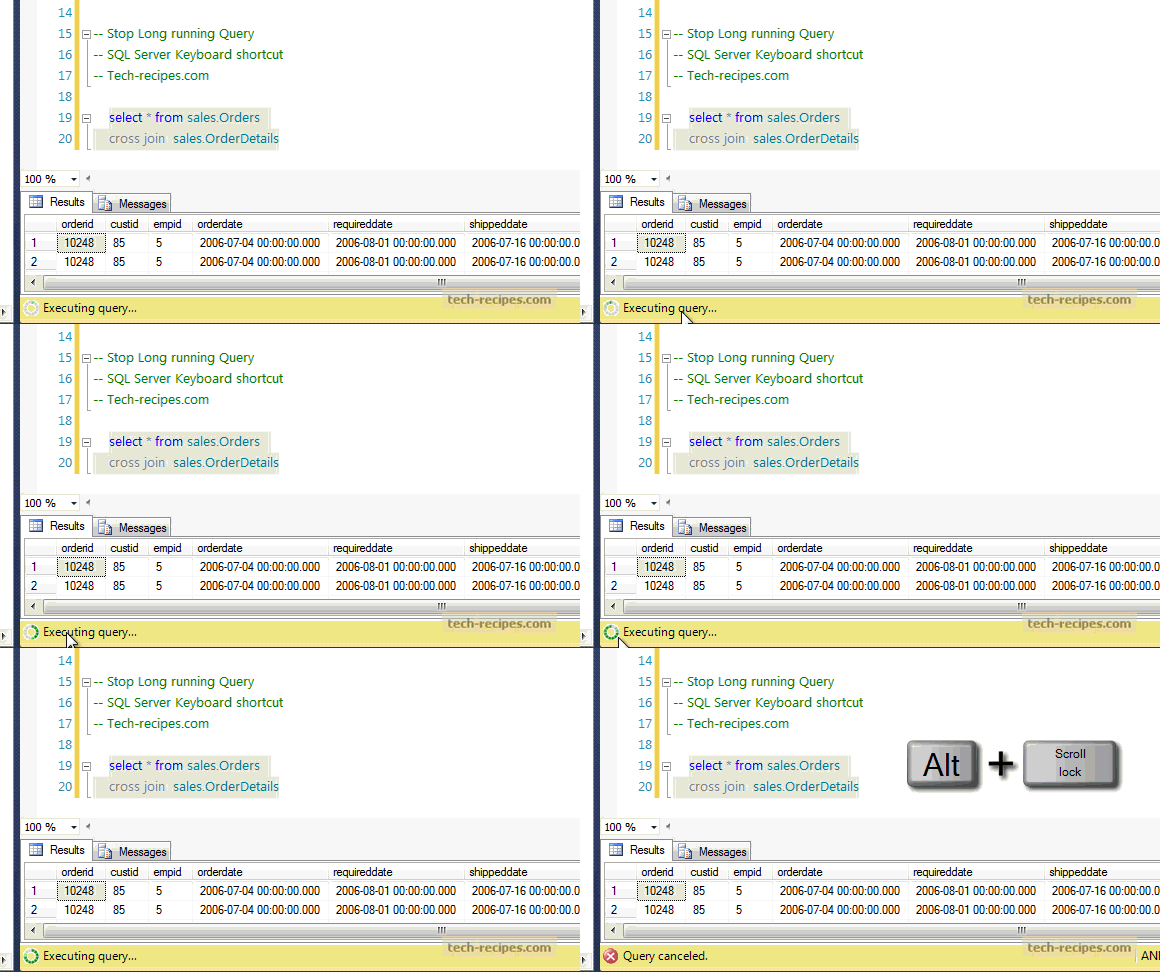
5. Cancel the executing query (Alt + Break or Alt + Scroll Lock)
Many times, we run the wrong query, and it may take time to show the results. Using this key pair, we can cancel the executing query quickly.
SQL_Server_Cancel_executing_query
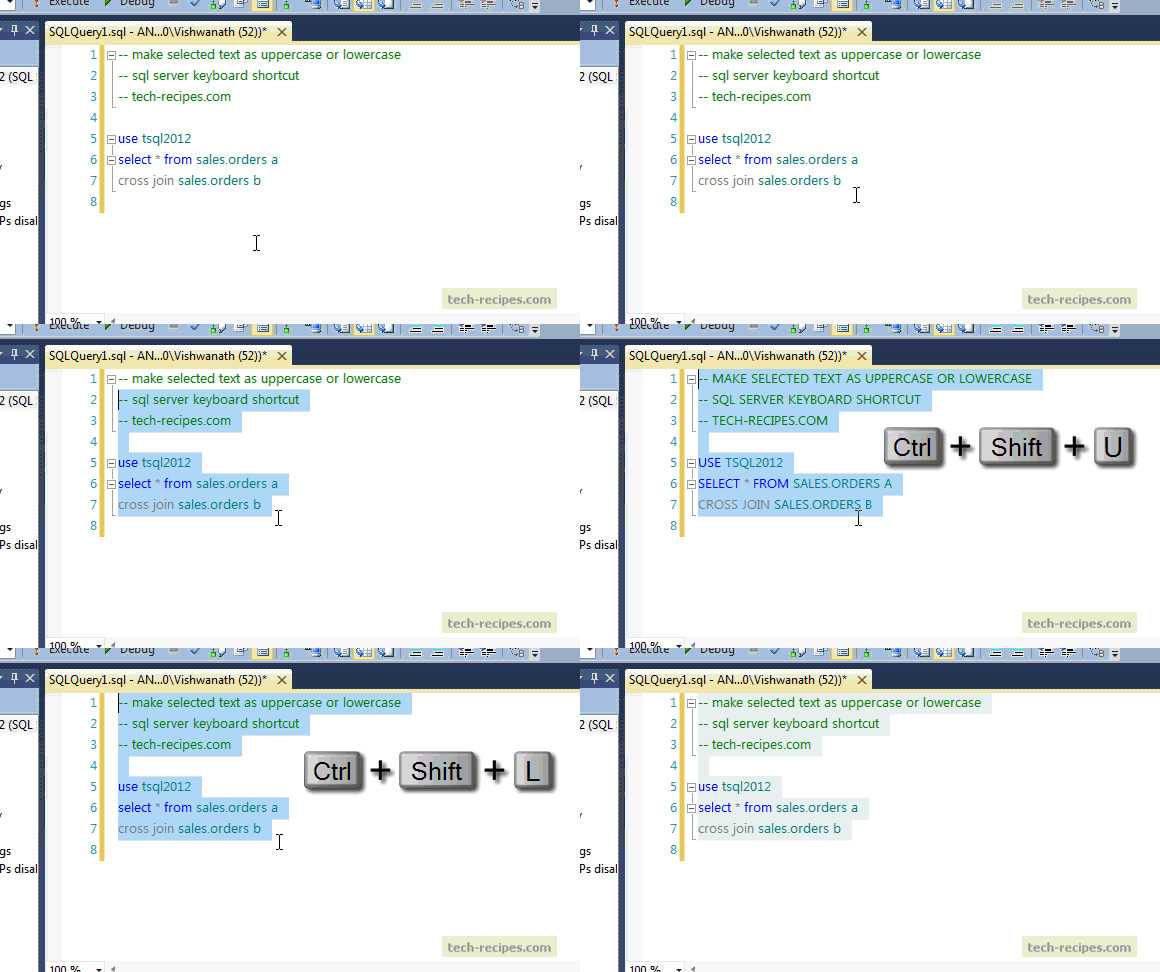
6. Make selected text uppercase or lowercase (Ctrl + Shift + U, Ctrl + Shift + L)
Formatting code has always been a tough job for programmers. If you want to make a part of a query uppercase or lowercase, this key pair works well.
SQL_Server_Make selected text as Uppercase_lowercase
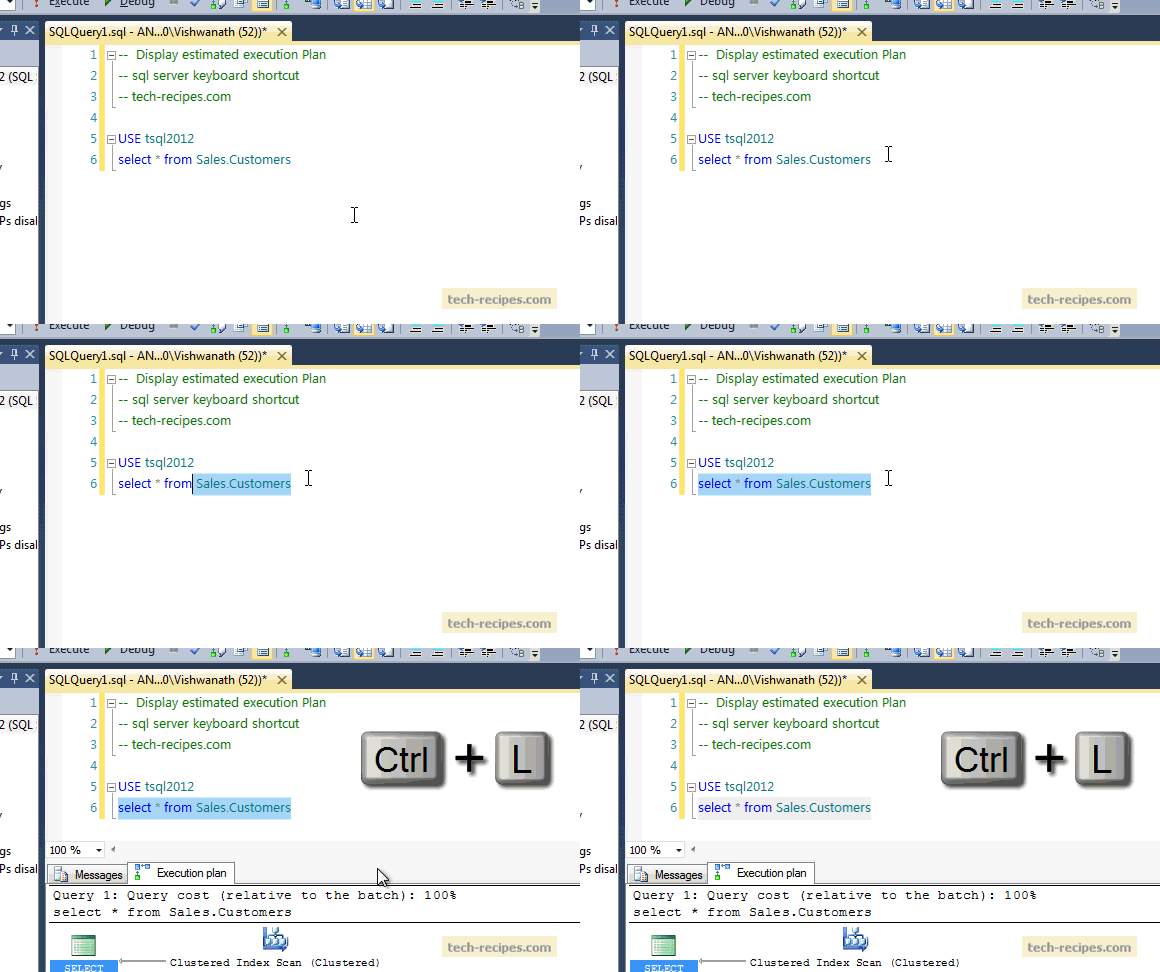
7. Display estimated execution plan (Ctrl + L)
Working on slow running queries always requires taking a look at the estimated execution plan.
SQL_server_display_estimated_execution_plan_keyboard_shortcut
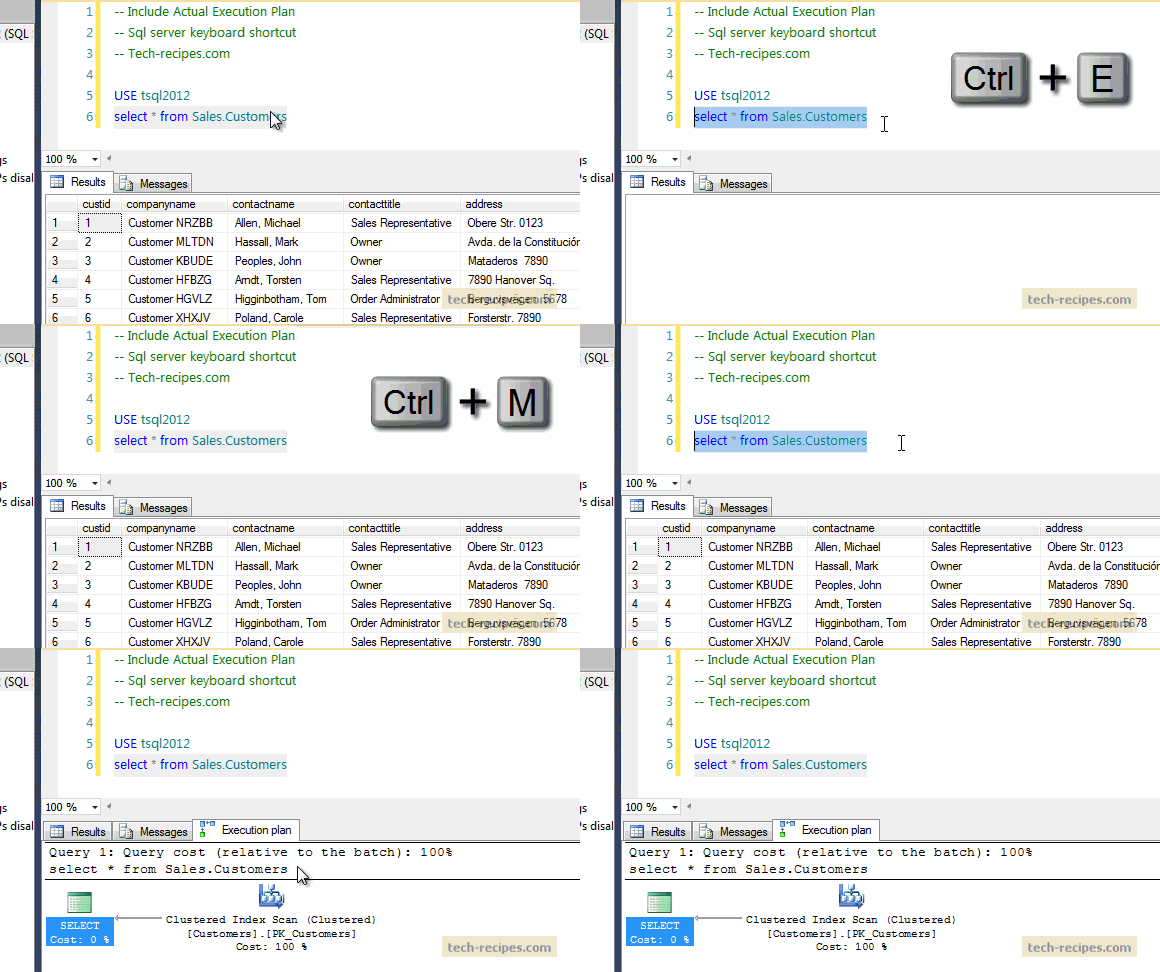
8. Include actual execution plan (Ctrl + M)
The same goes with an actual execution plan.
sql_server_include_actual_execution_plan_shortcut
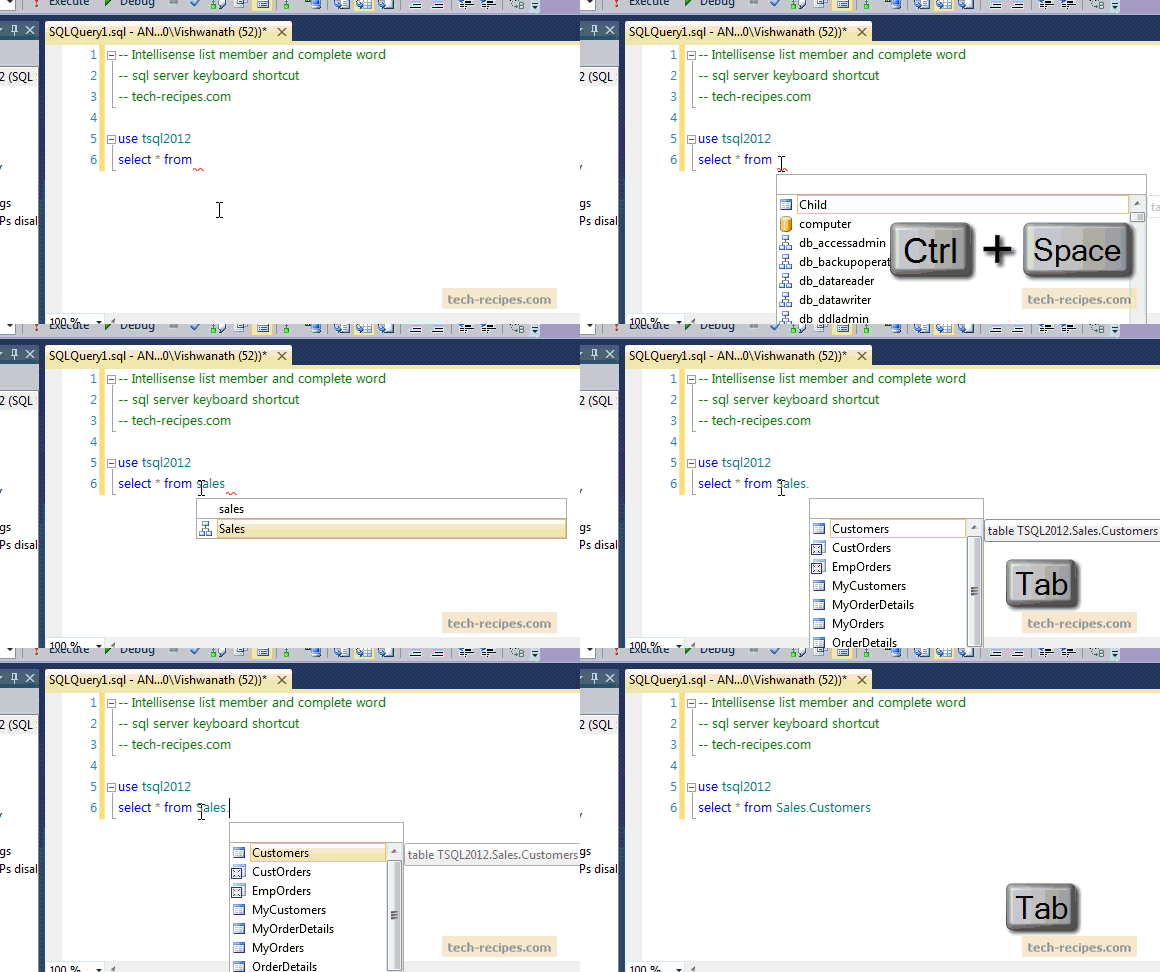
9. Intellisense list member and complete word (Ctrl + Space, Tab)
Microsoft’s Intellisense feature is a programmer’s delight. Suggestions like table names, columns and other information help programmers to write faster code. Using Ctrl + Space will give us suggestions, and using Tab, we can complete that suggestion.
sql_server_Intellisense_keyboard_shortcut
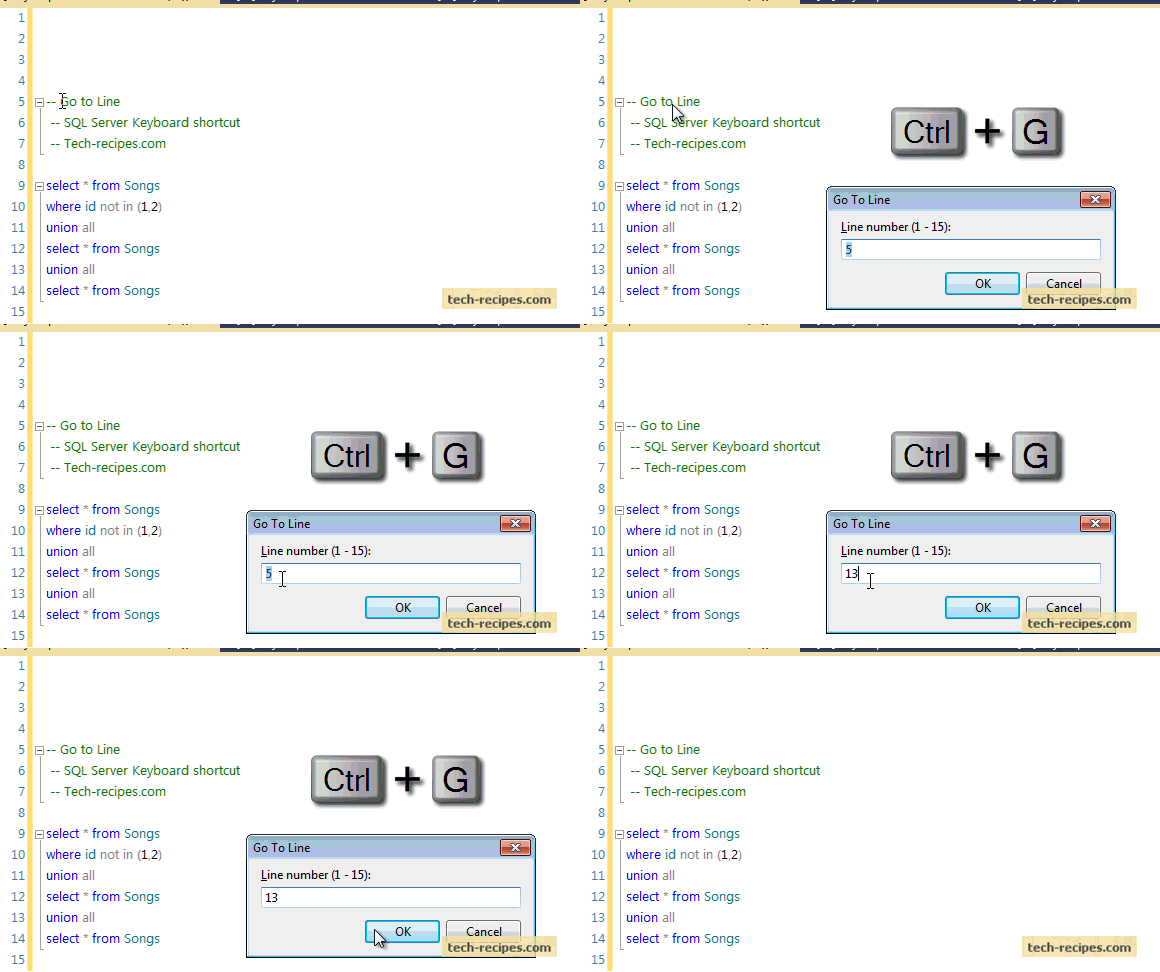
10. Go to line (Ctrl + G)
When trying to solve errors in a very long query, you need the error message which indicates the line number. Using this key combination, you can quickly jump onto that line.
Sql_server_keyboard_shortcuts_go_to_line
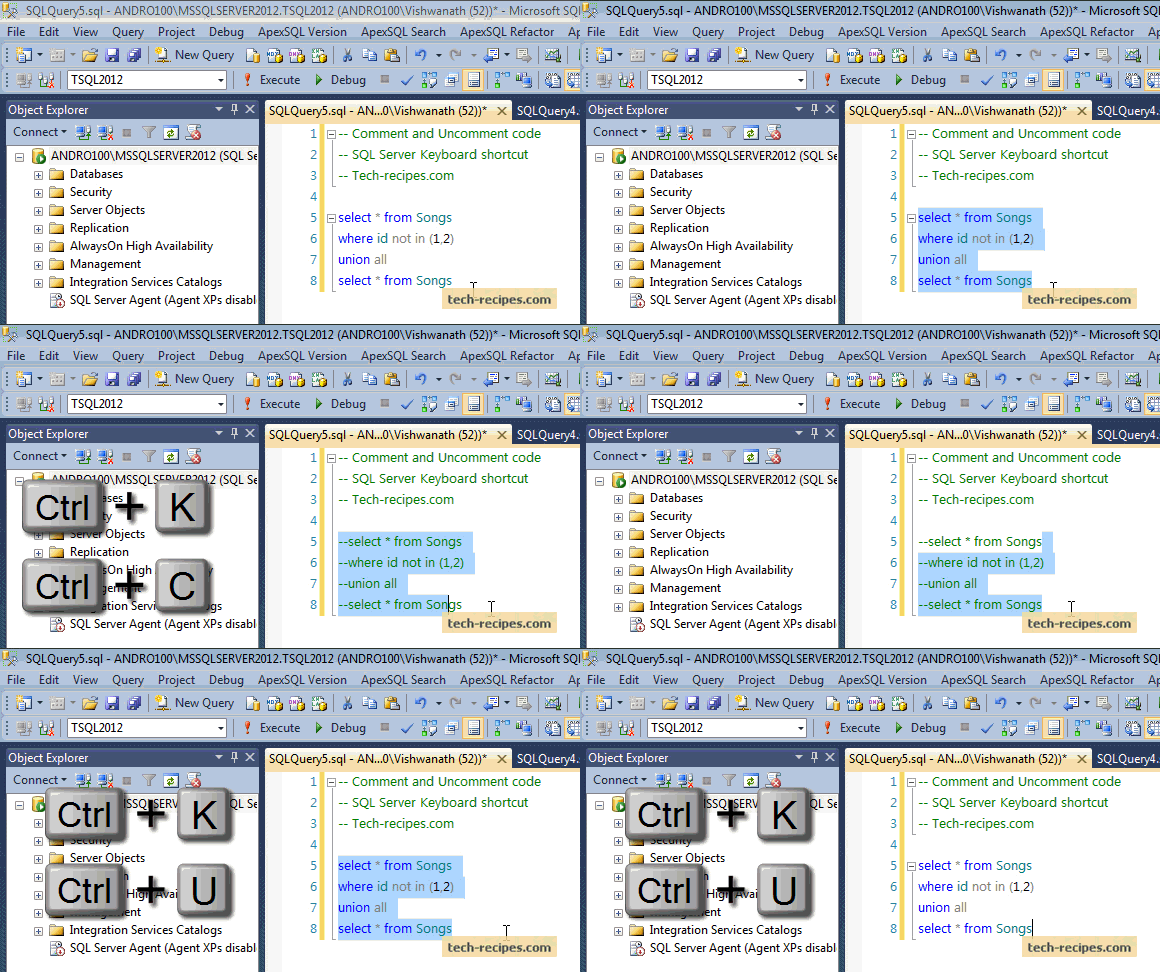
11. Comment and uncomment lines of code ( Ctrl + K & Ctrl + C; Ctrl + K & Ctrl + U)
Most of the time, programmers debug their code, and to do it faster, we keep commenting and uncommenting on a few lines of code. This key pair works perfectly for it.
sql_server_comment_uncomment_code
Go through our SQL Server archives to find out more useful tips for SQL Server geeks.

Thứ Hai, 11 tháng 5, 2015

SQL Tip: Note for sp_executesql?


Sounds like you're calling sp_executesql with a VARCHAR statement, when it needs to be NVARCHAR.
e.g. This will give the error because @SQL needs to be NVARCHAR
DECLARE @SQL VARCHAR(100)
SET @SQL = 'SELECT TOP 1 * FROM sys.tables'
EXECUTE sp_executesql @SQL
So:
DECLARE @SQL NVARCHAR(100)
SET @SQL = 'SELECT TOP 1 * FROM sys.tables'
EXECUTE sp_executesql @SQL

Thứ Hai, 27 tháng 4, 2015

SQL Tip: Different Methods to Know Parameters of Stored Procedure


Giả sử bạn có một thủ tục được lưu trữ một số thông số đầu vào. Có hai phương pháp để biết danh sách các thông số được xác định trong một thủ tục được lưu trữ.
Tạo Store Procedure:

CREATE PROCEDURE TEST_PROCEDURE(@CUST_ID INT,@YEAR INT) AS
SELECT @CUST_ID,@YEAR

Bây giờ để biết các thông số được sử dụng trong các thủ tục TEST_PROCEDURE lưu trữ, bạn có thể sử dụng các phương pháp sau đây:

Cách 1. Sử dụng SP_HELP system stored procedure

EXEC sp_HELP 'TEST_PROCEDURE'

Khi bạn thực hiện các phương pháp trên, đây là kết quả của tập kết quả thứ hai.


Parameter_name Type Length Prec Scale Param_order Collation
------------------ ----------- ----------- ----------- ---
@cust_id int 4 10 0 1 NULL
@year int 4 10 0 2 NULL

Cách 2. Use INFORMATION_SCHEMA.PARAMETERS system view

SELECT parameter_name,data_type, ordinal_position
FROM information_schema.parameters
WHERE specific_name='test_procedure'

Result:
parameter_name data_type ordinal_position
------------------------------------ ----------------
@cust_id int 1
@year int 2

Nếu có phương pháp nào khác mọi người comment nhé.

Thứ Sáu, 24 tháng 4, 2015

SQL Tip: How can I get column names from a table in SQL Server?


You can obtain this information and much, much more by querying the Information Schema views.
This sample query:
SELECT *
FROM Northwind.INFORMATION_SCHEMA.COLUMNS
WHERE TABLE_NAME = N'Customers'
Can be made over all these DB objects:
- CHECK_CONSTRAINTS
- COLUMN_DOMAIN_USAGE - COLUMN_PRIVILEGES
- COLUMNS
- CONSTRAINT_COLUMN_USAGE
- CONSTRAINT_TABLE_USAGE
- DOMAIN_CONSTRAINTS
- DOMAINS
- KEY_COLUMN_USAGE
- PARAMETERS
- REFERENTIAL_CONSTRAINTS
- ROUTINES
- ROUTINE_COLUMNS
- SCHEMATA
- TABLE_CONSTRAINTS
- TABLE_PRIVILEGES
- TABLES
- VIEW_COLUMN_USAGE
- VIEW_TABLE_USAGE
- VIEWS